Graphics Settings Menu

A dedicated Unity settings system for resolution, window mode, quality presets, VSync, FPS cap, brightness, UI scale, live preview, reset defaults, and persistent player preferences.

System Overview

Milestone 5A expands Echo Systems Lab’s menu architecture with a player-facing graphics panel that is separate from audio settings and built for clean persistence.

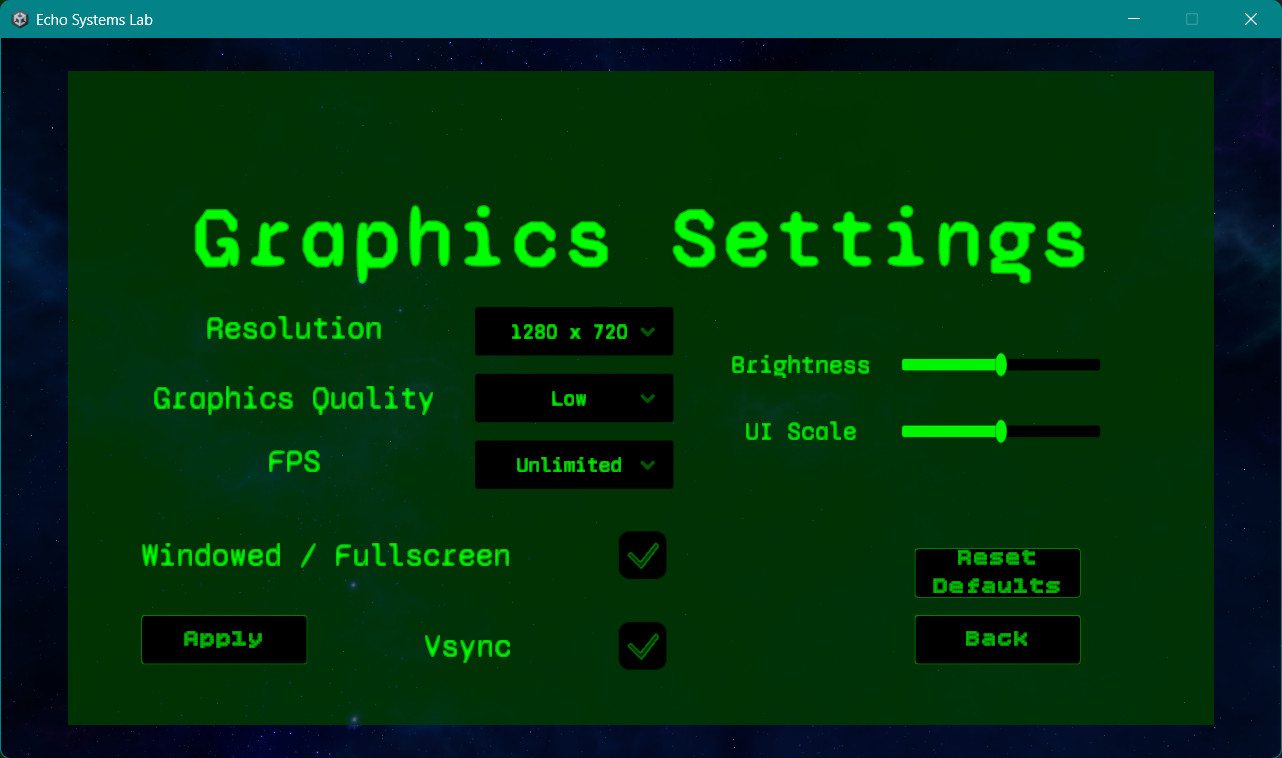
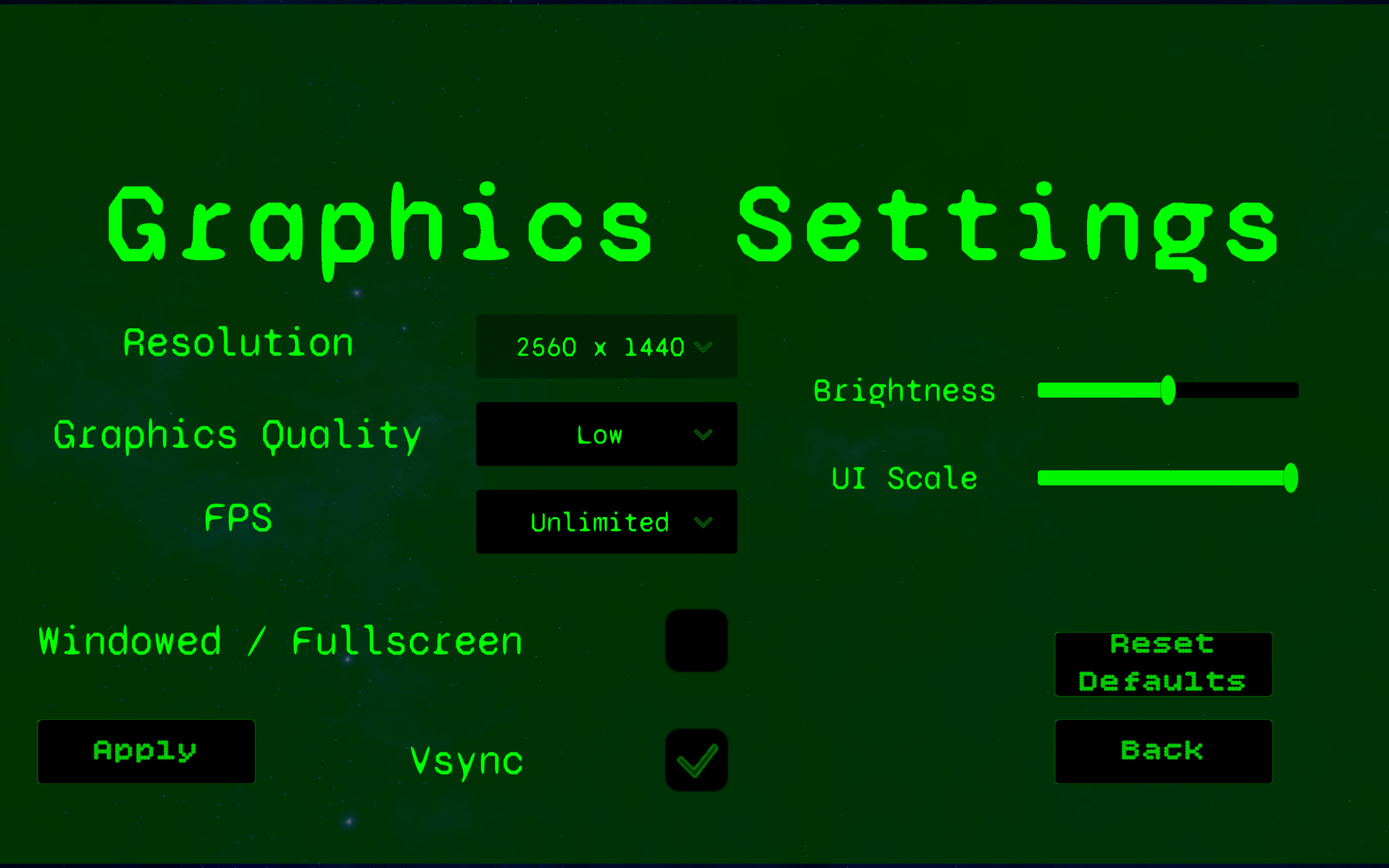
Unity live build screenshot showing the Graphics Settings menu with resolution, FPS, quality, brightness, UI scale, windowed mode, VSync, apply, reset defaults, and back controls.

Milestone 5A - Graphics Settings Menu

This system separates display preferences from the audio menu and gives players control over screen resolution, windowed/fullscreen behavior, graphics quality, VSync, FPS cap, brightness, and UI scale.

Settings are staged in the UI first, then applied and saved through a dedicated manager. UI scale previews live while dragging the slider, and resets or unapplied back navigation restore the saved state cleanly.

  • Unity 6
  • C#
  • Settings UI
  • PlayerPrefs
  • Display Options
  • UI Scale

Architecture

The menu is split into small responsibilities so player preferences, UI controls, brightness, and scale behavior are not tangled together.

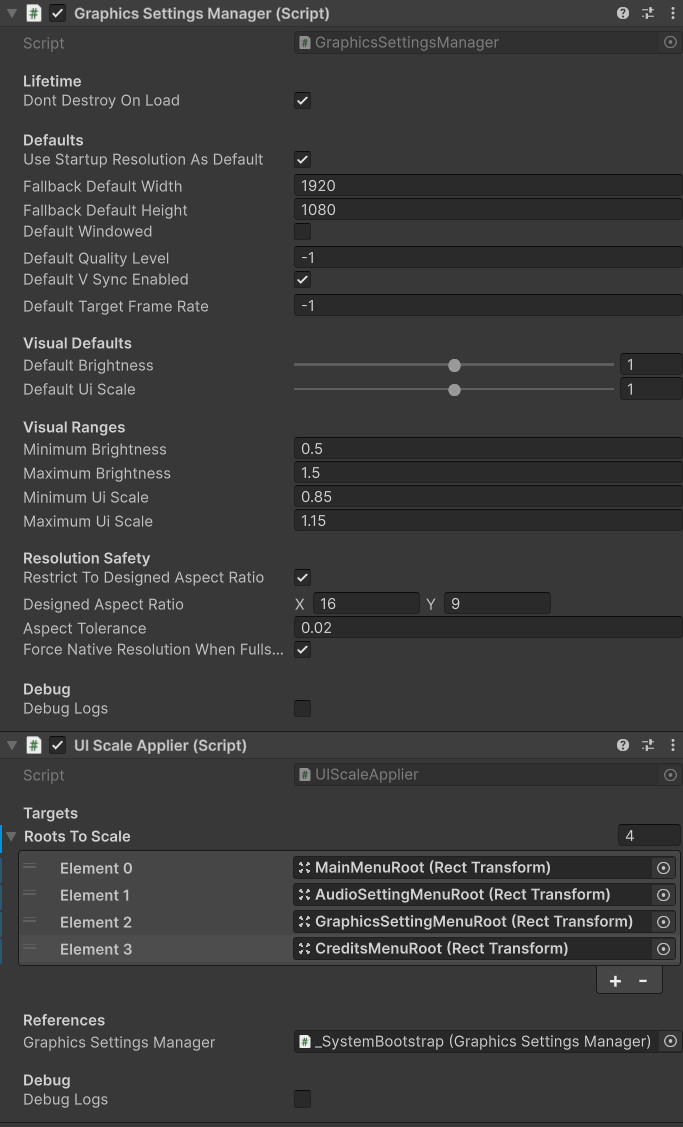
Unity Inspector screenshot showing GraphicsSettingsManager defaults, visual ranges, resolution safety settings, and debug options.

GraphicsSettingsManager

Owns the saved graphics state, loads and saves PlayerPrefs values, filters safe resolutions, applies Unity display settings, and broadcasts changes to listening UI systems.

  • Singleton
  • PlayerPrefs
  • Resolution
  • Quality
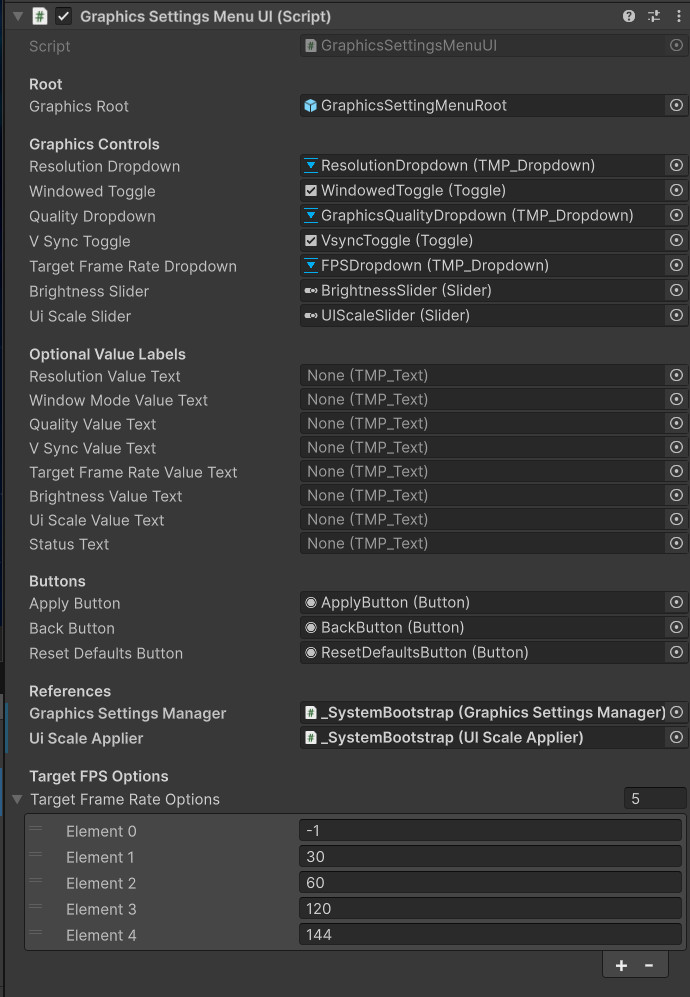
Unity Inspector screenshot showing GraphicsSettingsMenuUI references for dropdowns, toggles, sliders, buttons, value labels, and the GraphicsSettingsManager.

GraphicsSettingsMenuUI

Populates dropdown options, stages pending player choices, updates labels and status text, applies settings through the manager, and handles back/reset behavior.

  • TMP Dropdowns
  • Toggles
  • Sliders
  • Menu Flow
Live Windows build screenshot demonstrating the Graphics Settings menu running outside the Unity editor.

Live Build Testing

The system was verified in a Windows build where resolution, fullscreen/windowed mode, brightness, UI scale, apply, reset, and persistence behavior could be tested realistically.

  • Standalone Build
  • Persistence
  • Display Testing

Feature Breakdown

The menu is designed as a practical player settings panel, not just a static UI mockup.

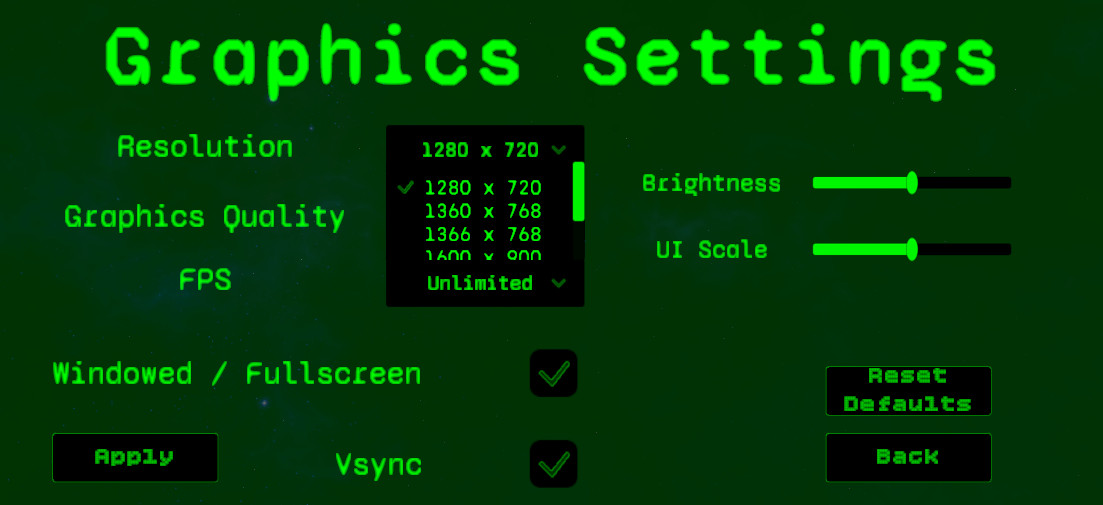
Screenshot of the resolution dropdown showing safe widescreen resolution options in the Graphics Settings menu.

Resolution & Window Mode

Resolution options are filtered for safe widescreen layouts, while fullscreen uses a safer native-resolution path to avoid awkward aspect-ratio clipping.

  • Resolution
  • Windowed
  • Fullscreen
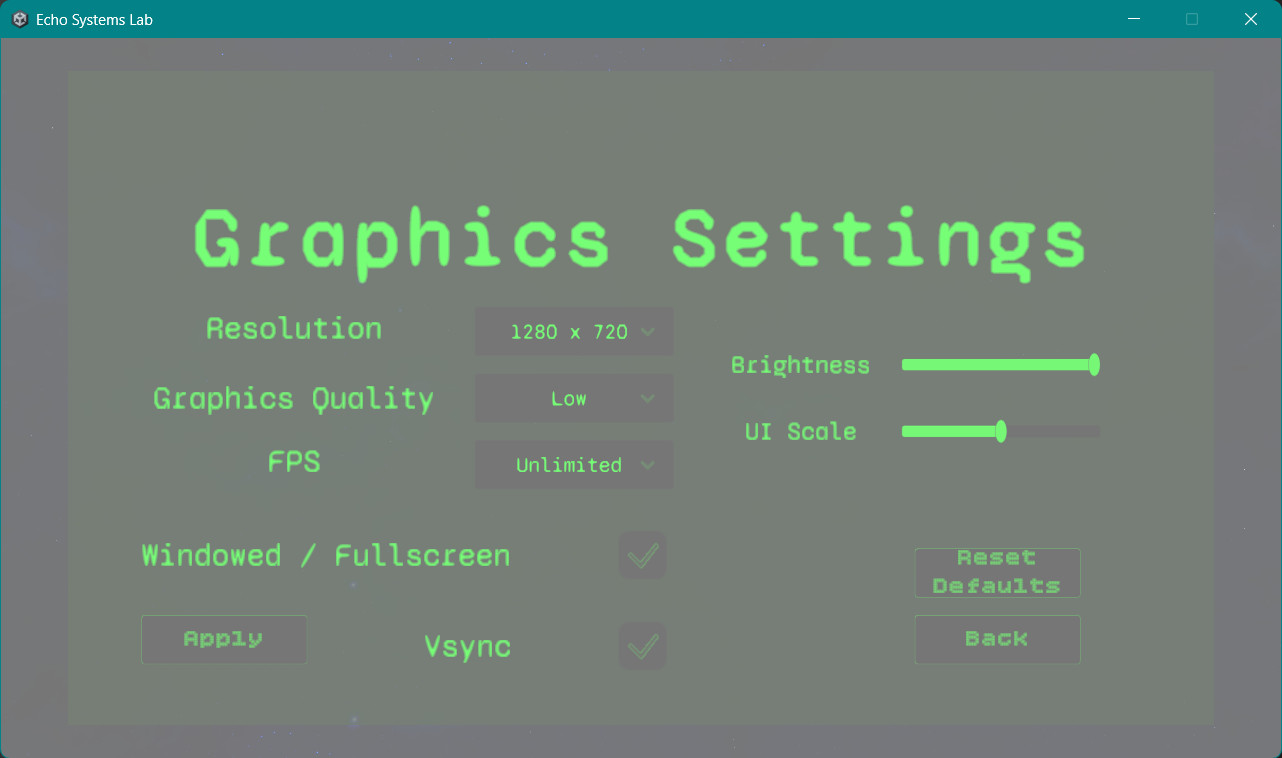
Screenshot showing the brightness slider and fullscreen overlay behavior adjusting the visual brightness of the menu.

Brightness Overlay

Brightness is handled through a lightweight fullscreen overlay controller. This keeps the feature simple, visible in builds, and separate from deeper render pipeline tuning.

  • Brightness
  • Overlay
  • Player Comfort
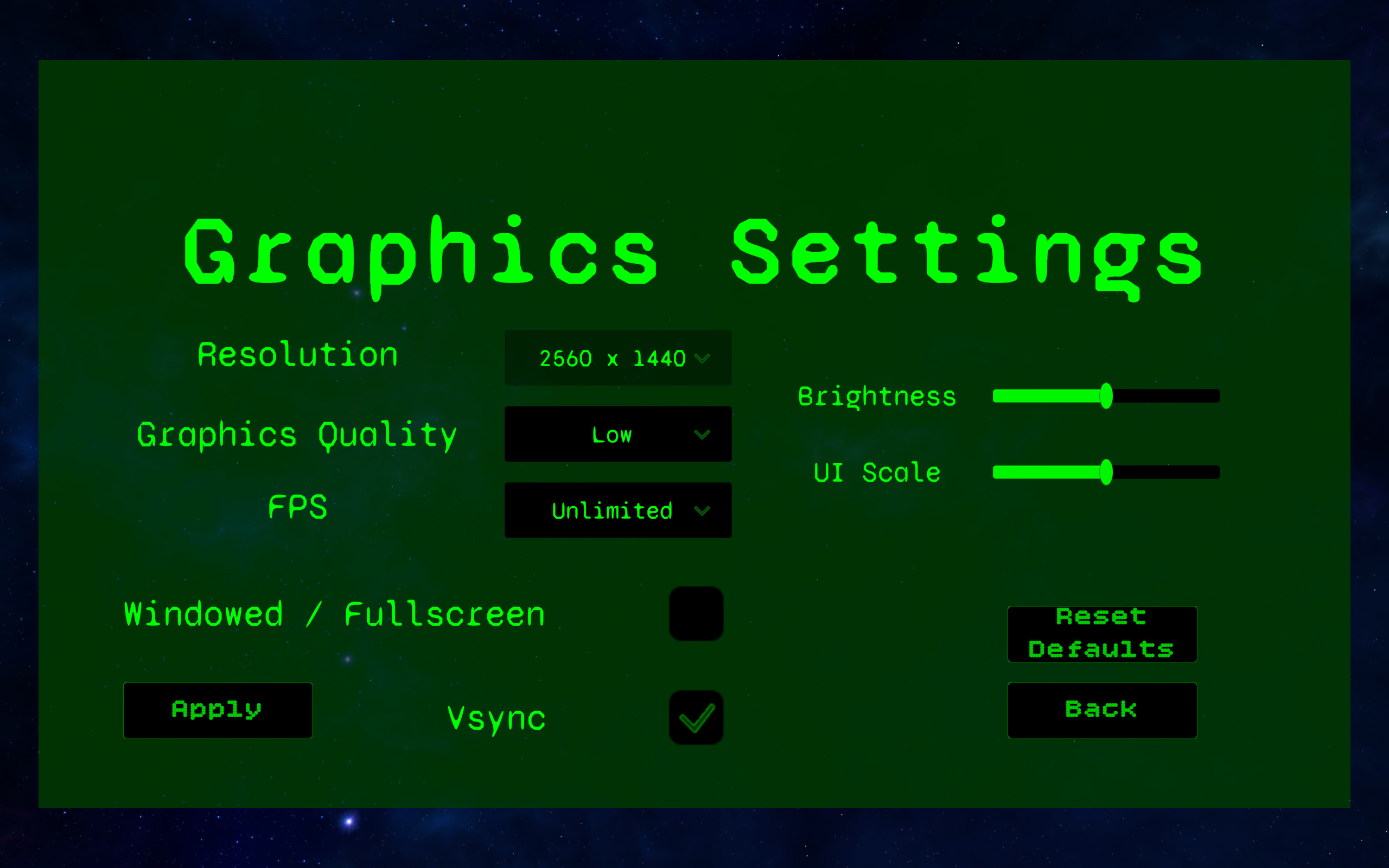
Before-and-after screenshot showing the UI Scale slider resizing the main menu, audio settings menu, graphics settings menu, and credits menu roots.

UI Scale Preview

UI scale previews live while dragging the slider, but only becomes persistent after Apply. Back navigation can revert unapplied scale changes.

  • Live Preview
  • UI Scale
  • Accessibility

Code Notes

Key implementation details that make the system reusable and easier to maintain.

Manager-owned persistence

Graphics preferences are stored through PlayerPrefs instead of SaveManager because these values are user settings, not game progression.

GraphicsSettingsManager persistence example
private const string BrightnessKey = "EchoSystemsLab_Graphics_Brightness";
private const string UiScaleKey = "EchoSystemsLab_Graphics_UiScale";

public void SaveSettings()
{
    PlayerPrefs.SetInt(ResolutionWidthKey, resolutionWidth);
    PlayerPrefs.SetInt(ResolutionHeightKey, resolutionHeight);
    PlayerPrefs.SetInt(WindowedKey, windowed ? 1 : 0);
    PlayerPrefs.SetInt(QualityLevelKey, qualityLevel);
    PlayerPrefs.SetInt(VSyncKey, vSyncEnabled ? 1 : 0);
    PlayerPrefs.SetInt(TargetFrameRateKey, targetFrameRate);
    PlayerPrefs.SetFloat(BrightnessKey, brightness);
    PlayerPrefs.SetFloat(UiScaleKey, uiScale);
    PlayerPrefs.Save();
}
Script-driven main menu routing
private void OpenGraphicsSettings()
{
    if (graphicsSettingsMenuUI != null)
    {
        graphicsSettingsMenuUI.OpenFrom(mainMenuPanel);
        return;
    }

    Debug.LogWarning("MainMenuController has no GraphicsSettingsMenuUI assigned.");
}
Live UI scale preview
private void HandleUiScaleChanged(float value)
{
    if (isSyncingControls)
        return;

    pendingUiScale = value;

    if (uiScaleApplier != null)
        uiScaleApplier.PreviewScale(pendingUiScale);

    RefreshValueLabels();
    SetStatus("Pending graphics changes.");
}
Brightness overlay approach
if (brightness < 1f)
{
    Color color = dimColor;
    color.a = percent * maxDimAlpha;
    overlayImage.color = color;
}
else
{
    Color brighten = brightenColor;
    brighten.a = brightenPercent * maxBrightenAlpha;
    overlayImage.color = brighten;
}
Result

Milestone 5A adds a complete graphics settings layer to Echo Systems Lab’s frontend systems.

What This Demonstrates

  • Dedicated settings architecture split by category
  • Runtime display option control using Unity APIs
  • Persistent user preferences through PlayerPrefs
  • Script-driven button wiring instead of manual Button OnClick setup
  • Live UI scale preview with clean apply/revert behavior
  • Brightness adjustment using a reusable overlay controller
  • Portfolio-ready player-facing polish