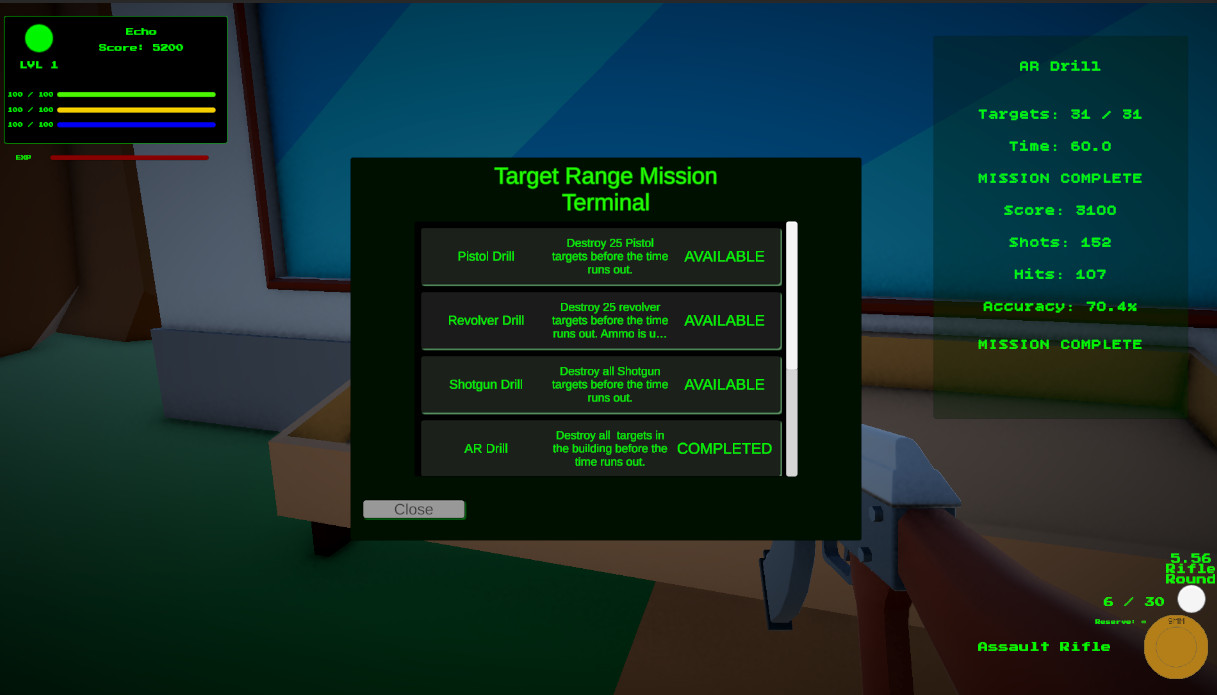
Terminal UI
The player-facing mission menu shows available drills, locked missions, completed states, and mission descriptions.
- Mission List
- Unlock State
- Player UI
A reusable Unity mission selection system that connects hub interaction, ScriptableObject mission data, dynamic UI generation, unlock requirements, completed mission tracking, scene loading, and trial progression.
The mission terminal is the hub’s control panel: it lets the player choose trials, checks unlock rules, and routes them into gameplay.
The Mission Terminal system gives Echo Systems Lab a central structure for launching gameplay trials. Instead of hardcoding mission buttons directly into the scene, missions are defined as data and displayed through a generated UI.
Each mission can define its display name, description, scene name, unlock requirements, and related trial behavior. The terminal reads that data, builds the mission list, marks missions as available, locked, or completed, and sends the player into the correct scene or current-scene mission setup.
This makes the hub expandable. New trials can be added by creating mission data assets instead of rewriting the terminal UI every time another drill, combat challenge, or movement test is introduced.
Turn mission data into a readable player-facing selection menu with unlock states and launch behavior.
Interact with terminal → View missions → Choose available mission → Load scene or arm current-scene drill.
Demonstrates data-driven UI, persistent progression checks, scene routing, and reusable hub architecture.
Screenshots showing the terminal UI, mission data, unlock state, and how the player moves from hub selection into a trial.
The player-facing mission menu shows available drills, locked missions, completed states, and mission descriptions.
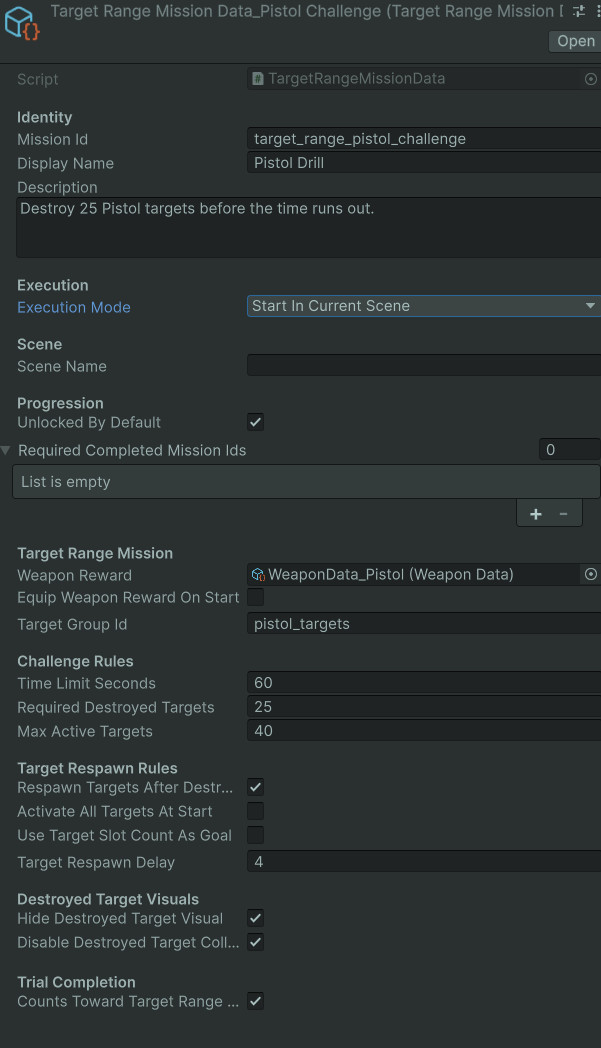
Mission rules live in ScriptableObjects so new trials can be authored through data instead of one-off UI scripts.
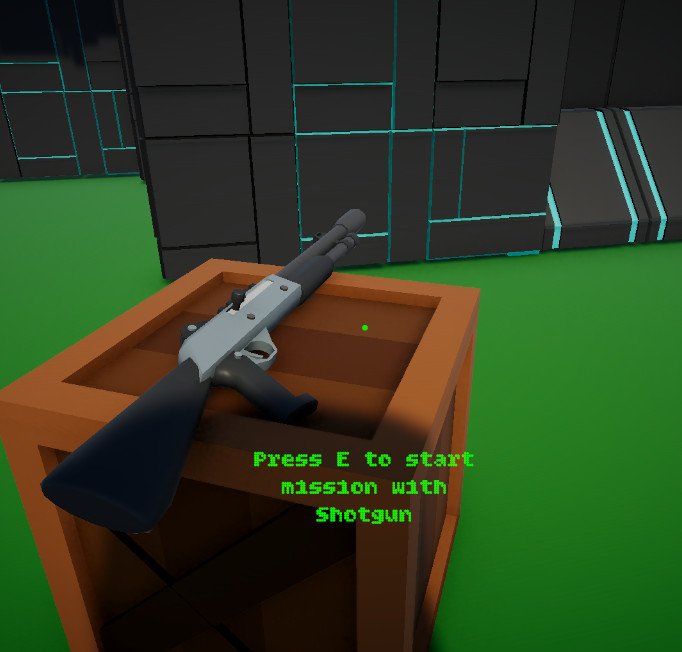
Once a mission is selected, the correct trial setup can be armed, including mission weapons and objective groups.
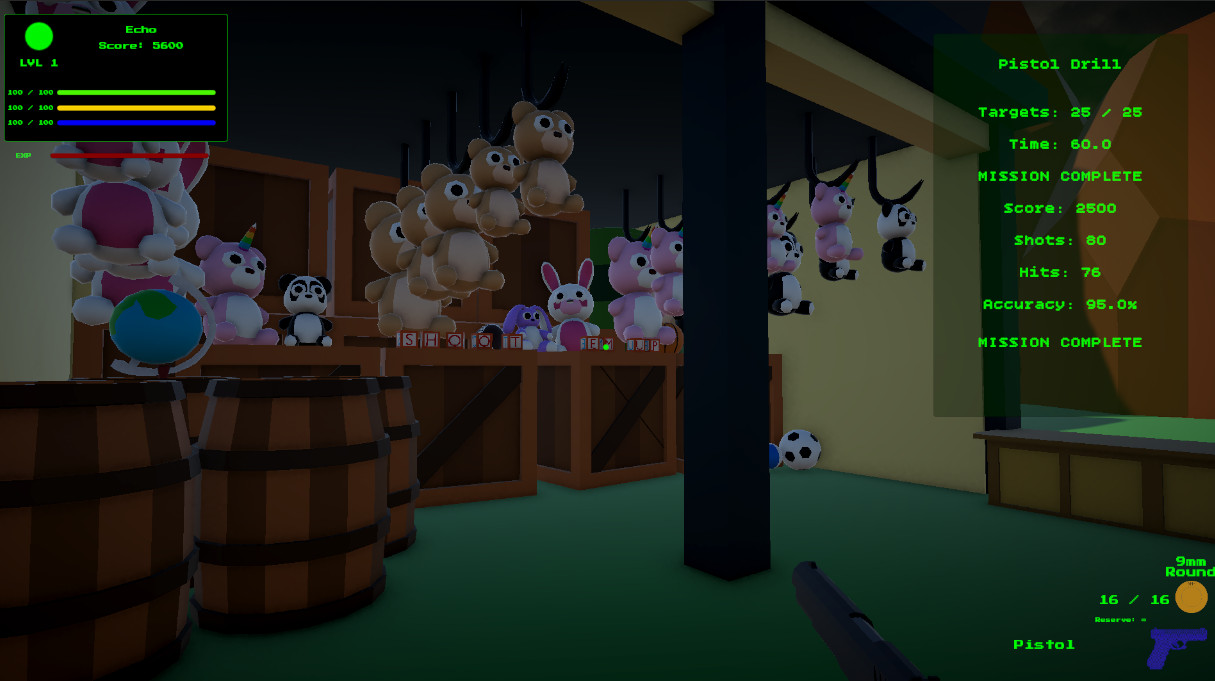
Completed missions update persistent state, which changes what the terminal shows the next time the player opens it.
The system is built around a clean hub-to-trial pipeline.
The player looks at the terminal object and receives an interaction prompt through the reusable interaction system.
Pressing interact opens the mission terminal UI and temporarily shifts player attention from movement to menu selection.
The terminal displays which missions are available, locked, or completed based on saved progression data.
Selecting an available mission either loads the target scene or arms a mission that can start inside the current scene.
The active trial tracks its own completion rules, then marks progress when the player meets the objective.
Completed mission IDs unlock later missions, weapons, or trial groups when the player returns to the terminal.
The terminal is built from focused pieces so mission content, UI, progress, and scene flow do not all live in one swollen script-beast.
Defines shared mission identity and unlock requirements: mission ID, display name, scene name, description, and required completed mission IDs.
Extends mission configuration for range drills, including target group, weapon reward, timer, required destroyed targets, active target limits, and objective settings.
Opens and closes the terminal, generates mission buttons, displays mission details, and routes player selections into the correct mission launch behavior.
Represents one mission entry in the terminal list, including label, interactability, available state, locked state, and completed state.
Tracks completed mission IDs and answers the important question: is this mission available to the player right now?
Handles scene transitions for missions, hub returns, main menu flow, and shared scene loading utility.
Mission availability comes from saved progress, while mission behavior comes from data assets.
The terminal does not need to know every detail of how each mission works. Its job is to list missions, ask whether they are unlocked, and trigger the correct launch behavior.
Mission data defines what the mission is. Progress data defines whether it is available or completed. The terminal UI combines those two layers into something readable for the player.
This separation matters because Echo Systems Lab is intended to grow. A future combat trial, movement trial, audio test room, or AI sandbox can plug into the same terminal pattern without replacing the hub architecture.
The terminal gives the player a clear read on what they can do now and what they are working toward.
The mission has no unmet requirements. The player can select it and start the related trial.
The mission requires another completed mission ID before it becomes selectable.
The mission has been completed and saved. It can remain visible as proof of progression.
Some drills can start in the current scene instead of requiring a separate scene load.
A mission can route the player to another scene when the selected trial has its own environment.
Completing several smaller missions can contribute to unlocking a larger trial completion state.
This system came from needing the hub to feel like a real connected game space instead of a pile of loose test scenes.
Early trial flow could work with hardcoded buttons, but that approach would have become brittle as soon as more missions were added. The terminal needed to scale with new drills, new unlock chains, and future trial categories.
It also needed to support persistent progress. When the player completes a mission, the hub should remember that result, unlock the next available mission, and display the new state without needing a special-case script for every mission.
By moving mission definitions into data and letting the UI generate itself from that data, the system became easier to extend, easier to debug, and easier to present as a portfolio architecture piece.
Replaced one-off mission buttons with generated UI based on mission data arrays.
Mission requirements are expressed through completed mission IDs instead of hidden scene-specific logic.
The hub can act as the persistent home base for multiple trials and future systems.
The terminal sits between data, save state, interaction, UI, and scene flow.
MissionData and TargetRangeMissionData define content. MissionProgress and SaveManager preserve completion state. MissionTerminalUI displays that state. GameSceneLoader moves the player between hub and trials. PlayerInteractor opens the terminal through the same interface used by weapon pedestals and other interactables.
This keeps the terminal from becoming responsible for everything. It does not own weapon firing, target destruction, scoring, or audio feedback. It simply starts the correct system and lets that system do its job.
The mission terminal shows how small systems become meaningful when they connect.
This page demonstrates practical Unity systems architecture: data-driven mission setup, dynamic UI generation, persistent unlock checks, scene routing, and reusable interaction.
It also shows production thinking. A portfolio project should not just contain gameplay features, it should show how those features are selected, organized, unlocked, replayed, and expanded. The terminal gives Echo Systems Lab that structure.
For a gameplay systems role, this is valuable because it shows I can build the framework around the feature, not just the feature itself.
The terminal connects directly to save progression, interaction, target range missions, and weapon unlocks.
Covers completed mission IDs, owned weapons, weapon XP, active weapon selection, and persistent progression data.
Covers raycast-based interaction, interactable interfaces, prompt display, terminals, weapon pedestals, and world object activation.
Covers timed drills, mission state, target objectives, score, accuracy, HUD updates, and full trial completion.